Windows · Uninstall guides · Leftover cleanup
Uninstall programs cleanly and find what Windows leaves behind.
Practical steps, real-world fixes, and FAQs, written in plain English so you can free space and fix broken installs without stress.
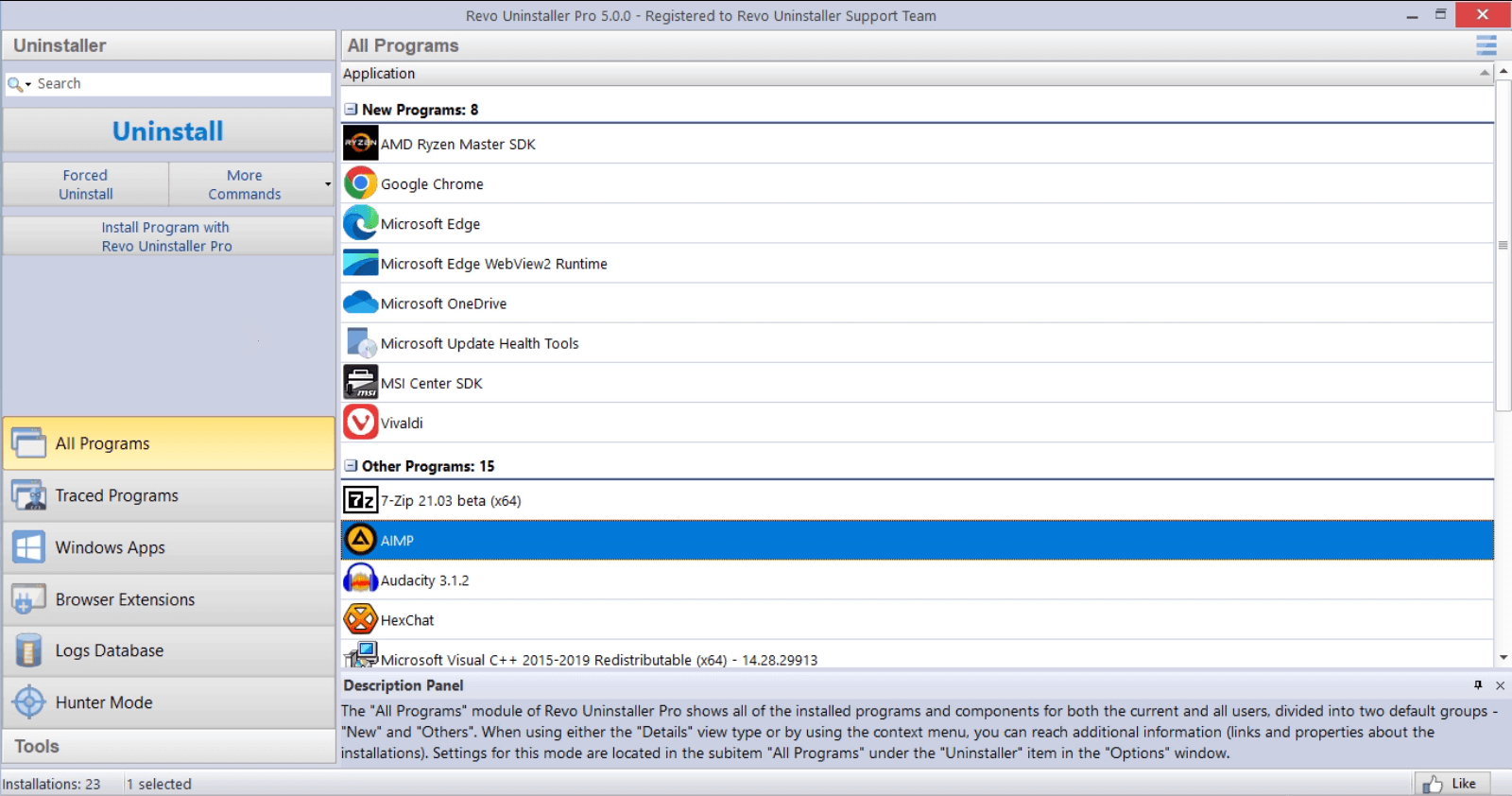
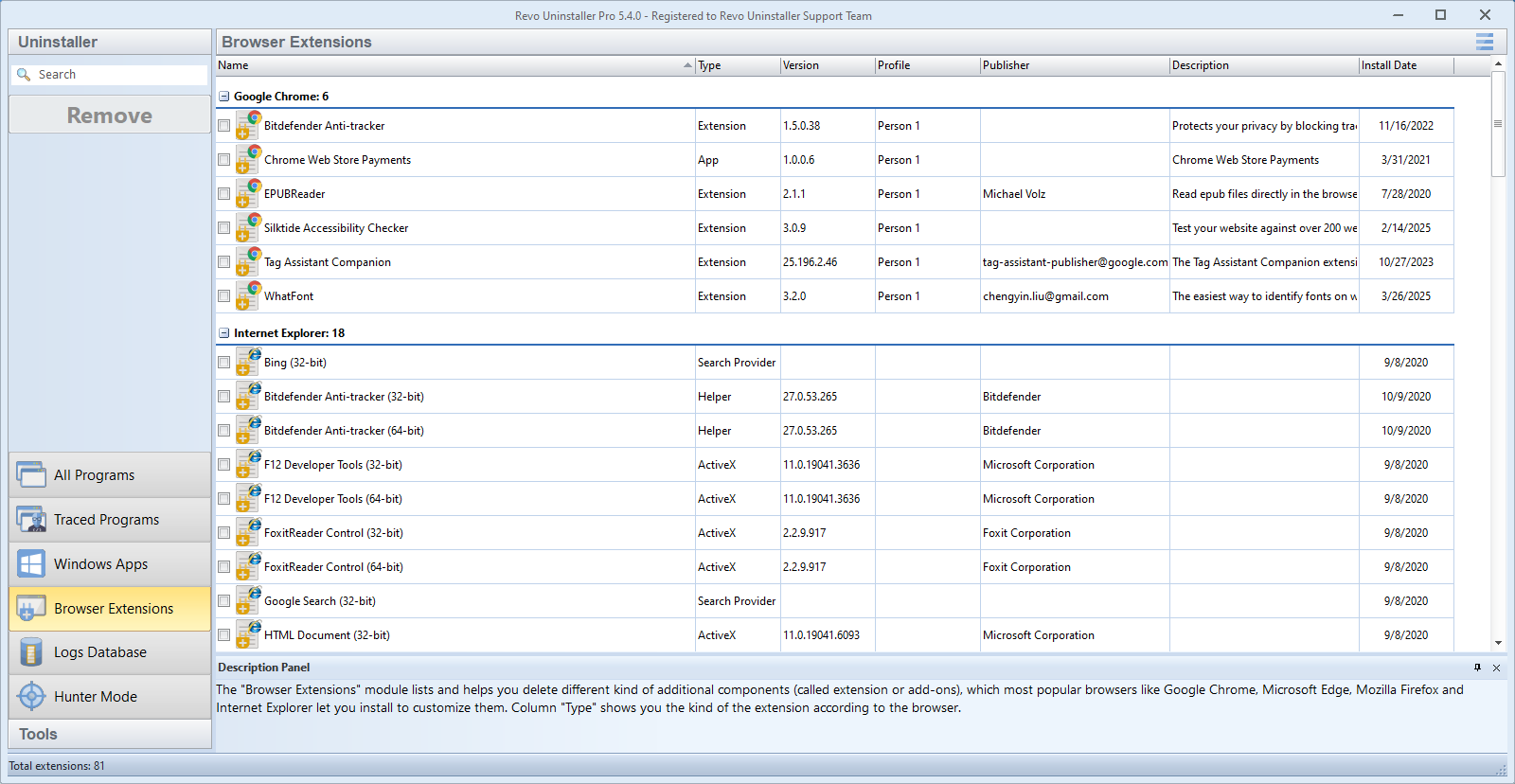
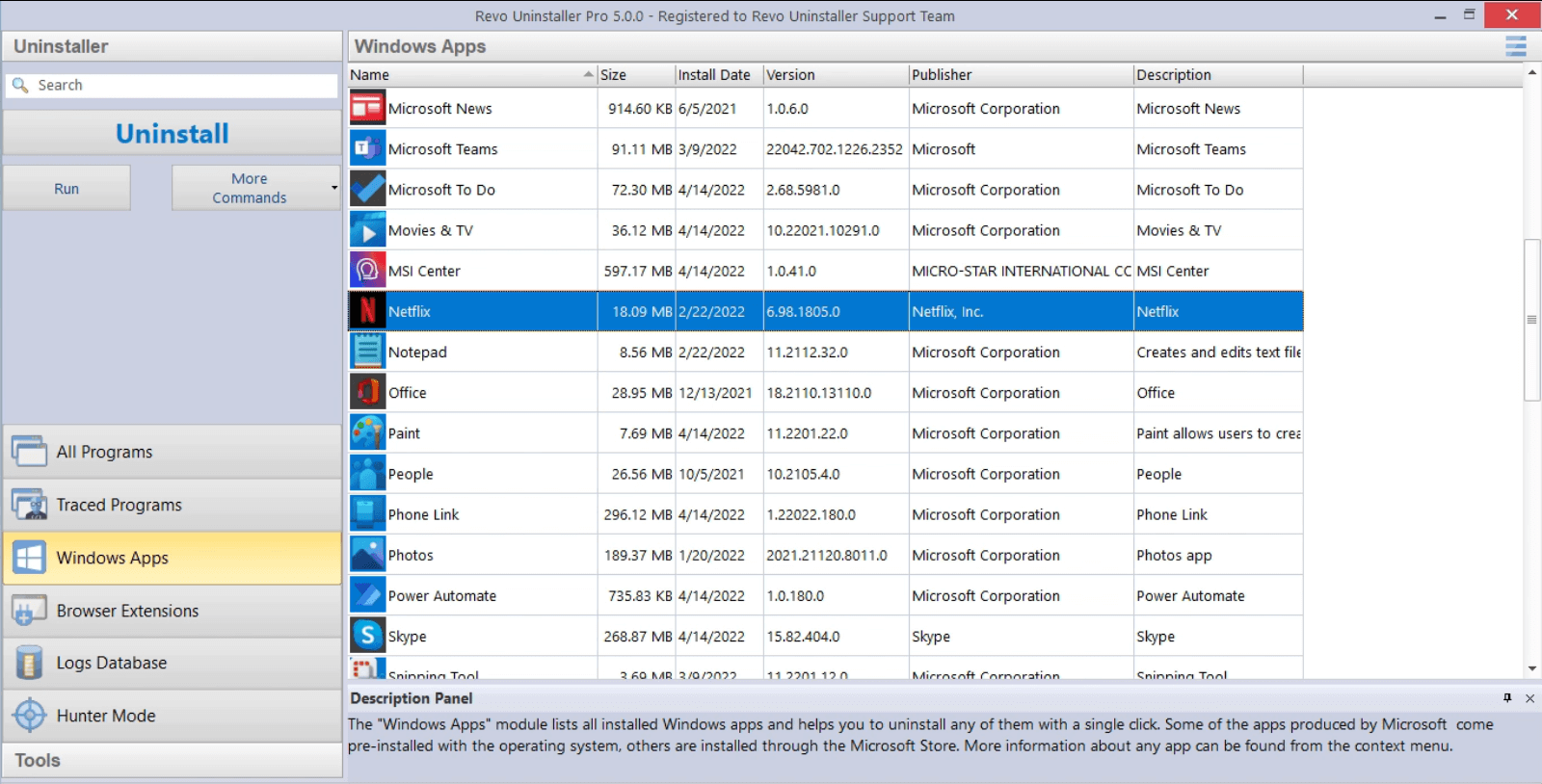
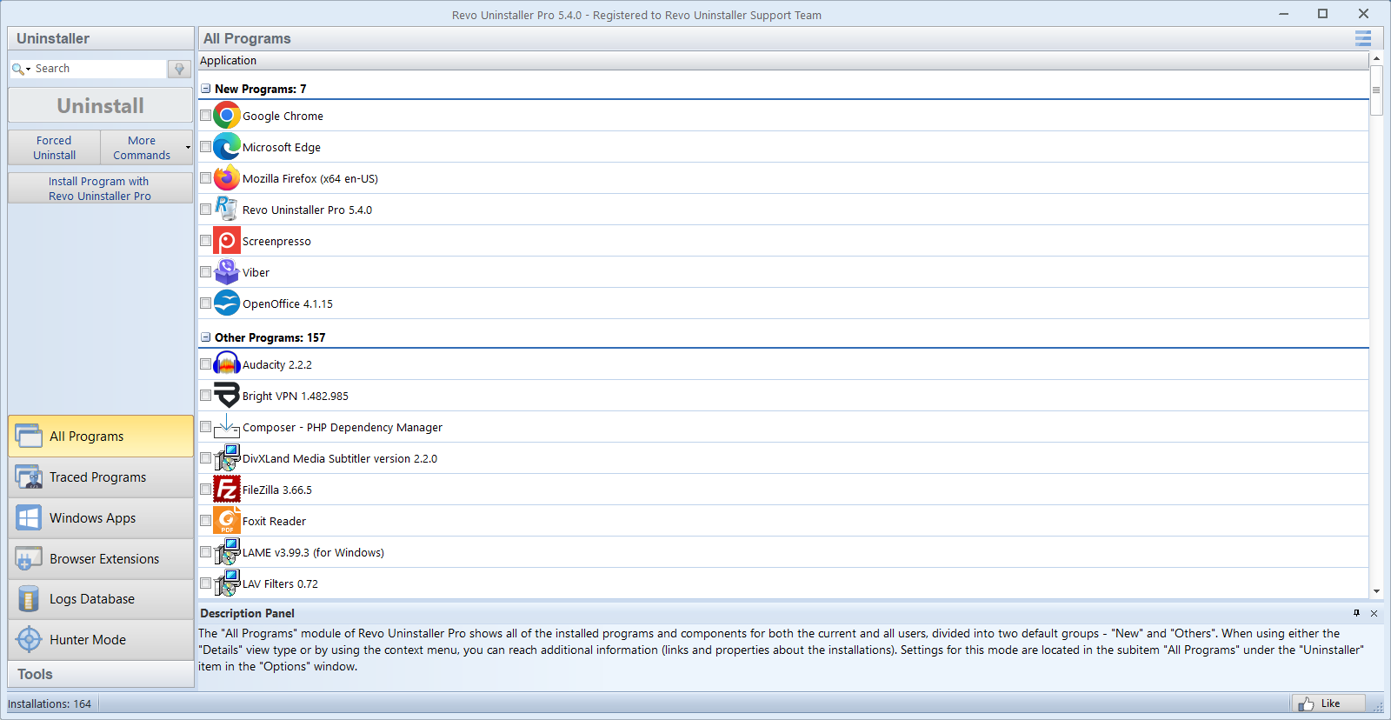
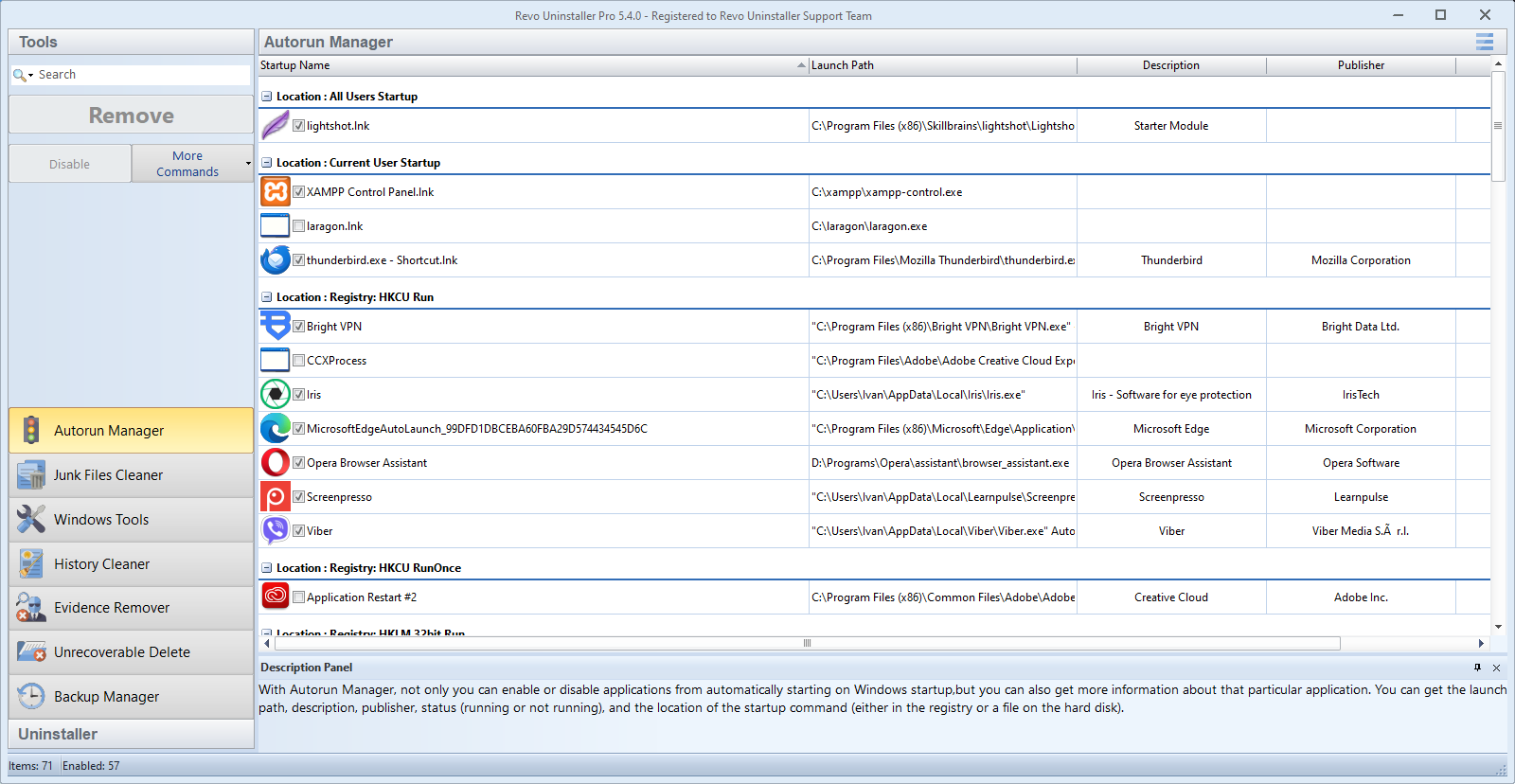
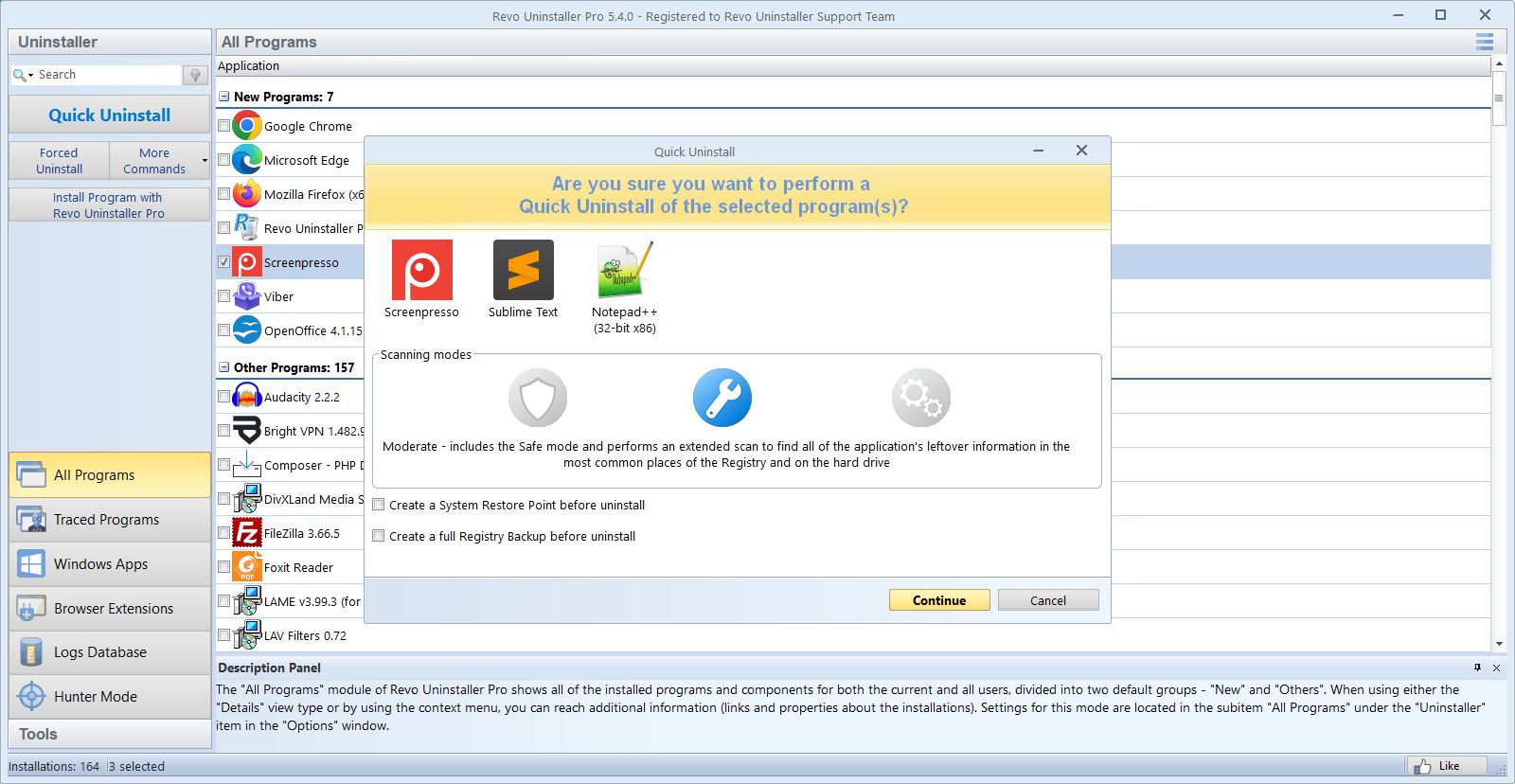
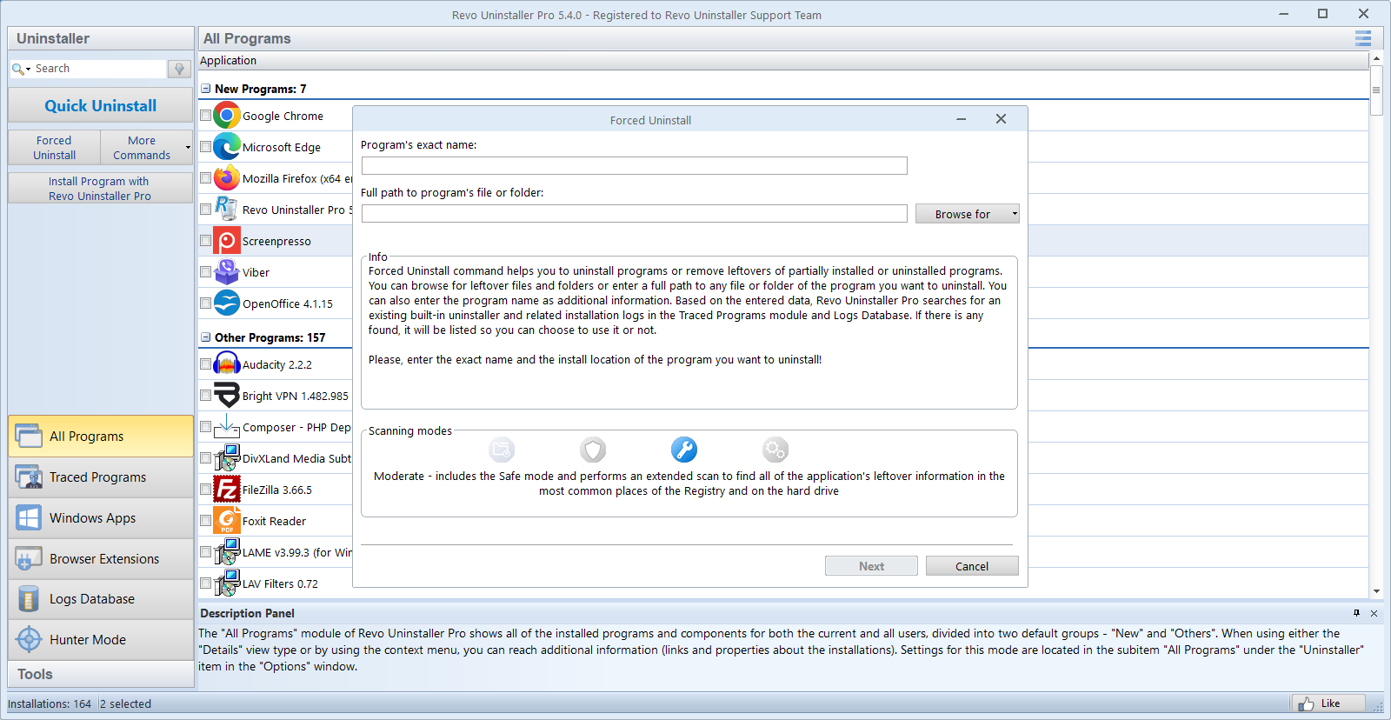
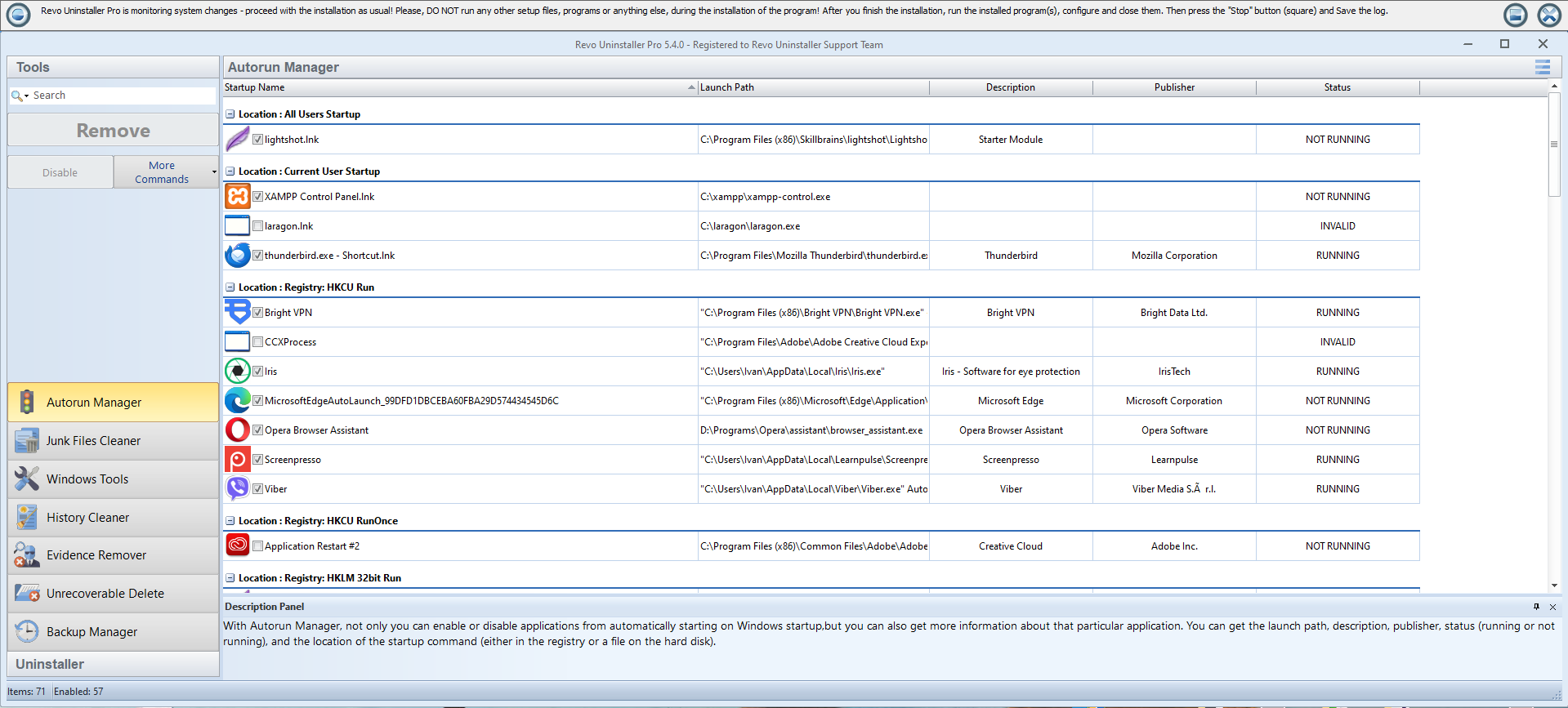
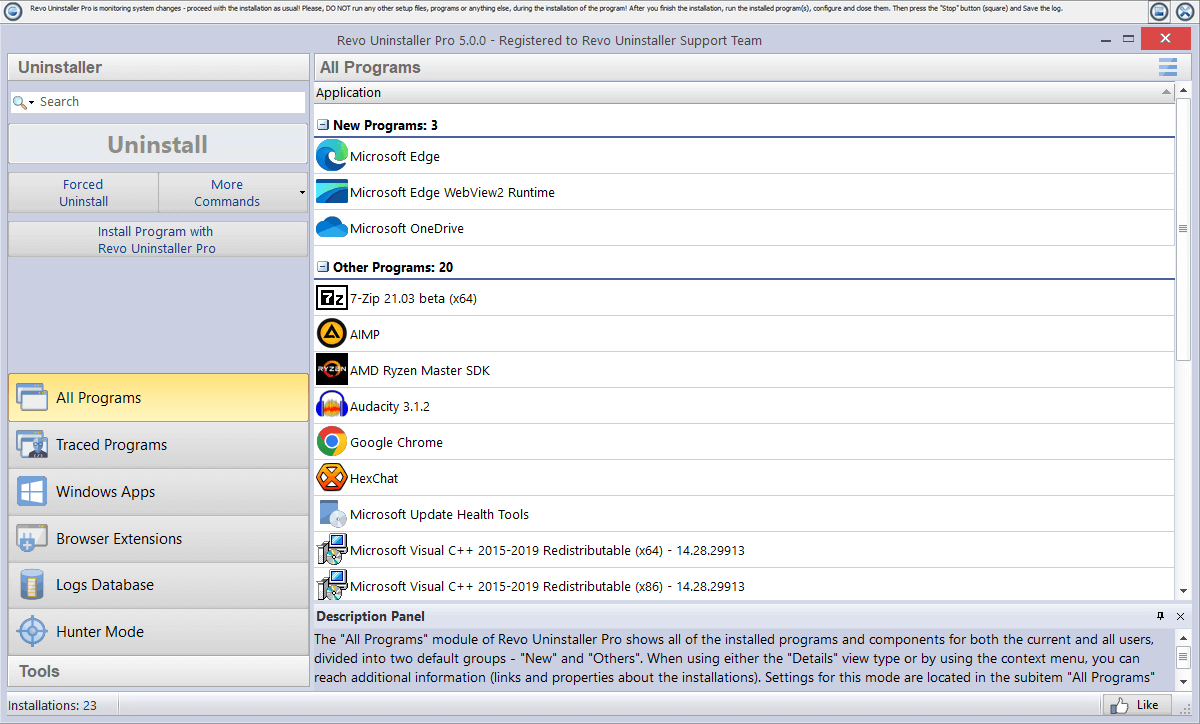
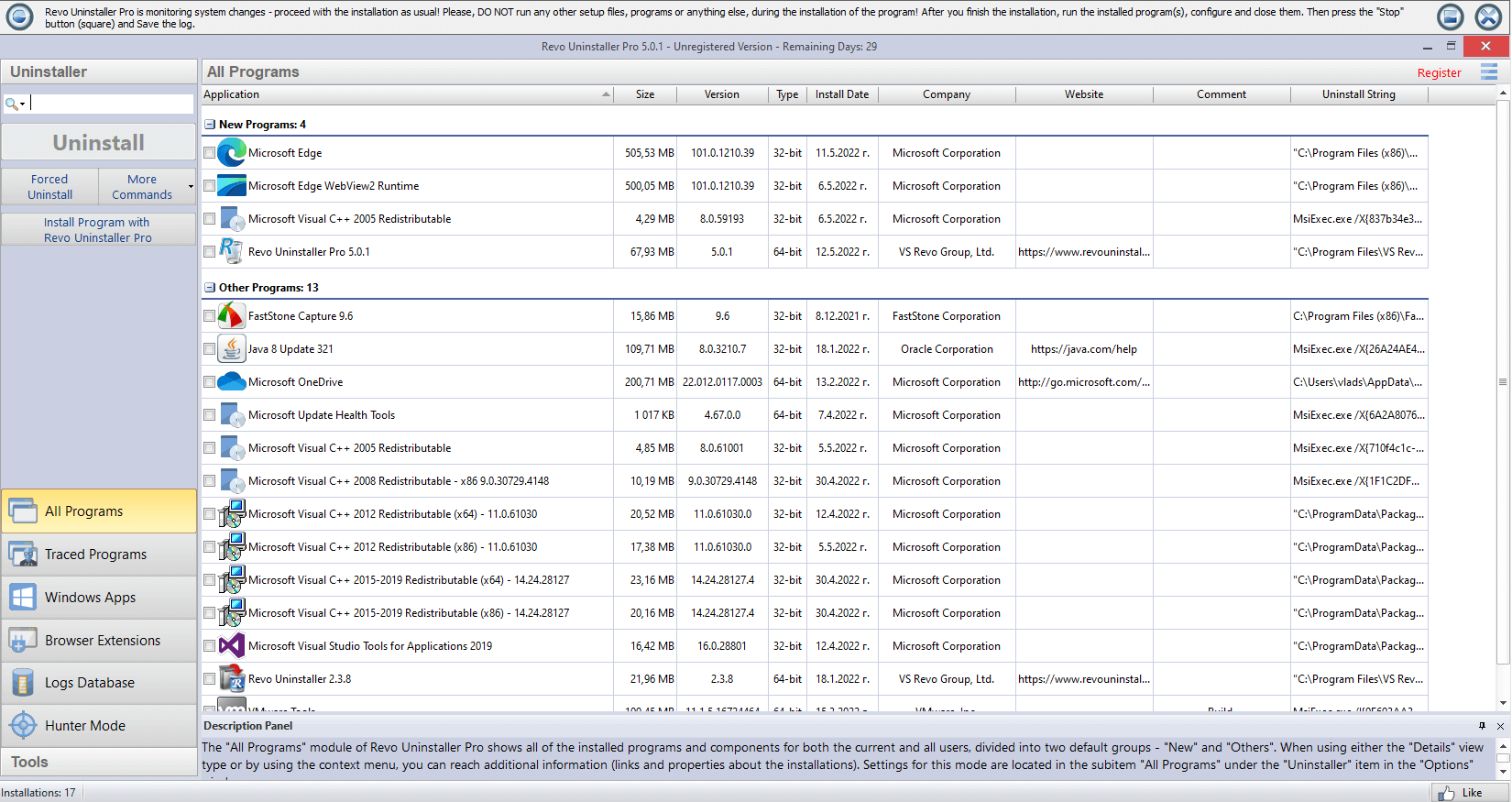
Click the carousel, then use ← → to step through the same UI you will see after install.
Browse the site
Each topic has its own page. Start anywhere: newcomers often open FAQ and Media first, while helpdesk folks jump straight to Blogs for numbered procedures.
Bookmark Download for the Pro setup step on this site; the rest of the guides stay useful even if you only use the free tier or another uninstaller, because the Windows behavior is the same.
Features
Leftover scans, Hunter-style targeting, forced uninstall, Windows Apps, browser extensions, and startup tools explained with screenshots from the real app.
Media
MP4 walkthroughs: overview and Pro 5 tours you can pause, rewind, and watch full screen.
Stories
Short real-world cases: antivirus trials, game launchers, VPN clients, and why the standard uninstall list is not always enough.
Blogs
Step-by-step articles on MSI errors, ghost installs, registry backups, disk recovery, browser clutter, and telemetry leftovers.
FAQ
Safety habits, Hunter Mode, Pro vs Free, SmartScreen, admin rights, multi-user PCs, and how to undo an over-aggressive cleanup.
Download
Pro setup helper and quick safety tips.
Jump around this home page
Long scroll on mobile: use these anchors to skip to the section you need.
Who this home page is written for
- · Home users freeing space after trials, games, or bundled toolbars.
- · Small business admins fixing one bad install before imaging a fleet.
- · Helpdesk techs who want a neutral checklist to paste into tickets.
- · Anyone who already read publisher docs but still sees ghost entries or locked files.
Site text is updated when Windows behavior shifts; your OS build and the app’s own release notes still win if something disagrees.
Myths vs facts on this home page
Short corrections we see in comments and tickets. They keep expectations aligned with how Windows actually behaves.
Myth
Deleting the folder is enough.
Fact
Services, drivers, and registry entries can outlive the folder. Run the program’s built-in uninstall path first; see FAQ on Program Files deletes.
Myth
A bigger scan list means a better tool.
Fact
Long lists include noise. Quality is how well you can justify each line, not how many boxes appear.
Myth
Uninstalling frees RAM like magic.
Fact
Idle apps were not using RAM anyway. Startup and background agents are the usual win; disk space is the other honest gain.
Myth
Paying for Pro removes all risk.
Fact
A license does not know your disk layout. You still choose each delete; Pro adds depth, not a guarantee against mistakes.
Myth
A “registry cleaner” replaces a real uninstall.
Fact
Run the product’s own uninstaller or Settings first. Random registry sweeps cause more outages than they fix.
Before you click Uninstall
A short mindset that keeps home PCs and work laptops safer. None of this is a race; the goal is a machine you still trust after the cleanup.
-
1 · Identify
Write down the exact product name and version. Screenshots of the About dialog beat memory when something reappears next week.
-
2 · Default path
Use Settings or the vendor uninstaller first. Deep scans and forced removal are for when that path fails, not the opening move.
-
3 · Prove each line
Every leftover row should map to a folder or key you can explain. If the row only says “unknown,” stop and read FAQ before you check the box.
Same machine, calmer schedule
Batch unrelated cleanups into one maintenance window: finish Windows Update, quit game launchers, and pause backup jobs so fewer files stay locked. That single habit cuts random “access denied” errors more than any hidden setting.
At a glance
Four outcomes readers come here for. Pick one, then follow the linked page in order.
- Free disk spaceDisk article, then junk tools.
- Fix a broken installerMSI guide, ghost entries.
- Kill a stubborn tray appHunter article, Media.
- Learn safelyFAQ, Stories for patterns.
- Browser keeps reinstalling extensionsBrowser cleanup · turn off sync briefly while you test.
- IT policy blocks your next stepStop and use internal channels. The FAQ entry on managed PCs explains why.
Laptops on battery: deep scans and disk sorting are slower and risk an unexpected sleep mid-uninstall. Plug into power for anything that touches thousands of files, matching the reminder in the download checklist below.
Sample evening cleanup order
Not a rule for every PC, but a sane default when you have ninety minutes and one annoying program. Adjust for laptops, servers, or shared accounts.
- 1 Stabilize · finish or snooze Windows Update, close games and heavy browsers, note free space on C: (at least a few GB free before big deletes).
- 2 Normal uninstall · Settings or the vendor wizard, elevated if prompted. Reboot if the dialog insists.
- 3 Leftover pass · one product at a time, export a registry backup when the guide says so. Cross-check leftover workflow.
- 4 Startup and tasks · if something respawns, use Features and the services article before more deletes.
- 5 Verify · reboot, open two apps you rely on, check disk free space again. Log what you removed if this is a work machine.
Go deeper on each topic
This site is an independent guide: we focus on workflows you can trust, not hype. Windows already ships an uninstaller, but stubborn programs, partial failures, and hidden caches are common. Use the sections below like chapters: skim on mobile, then open the full page when you are at the keyboard.
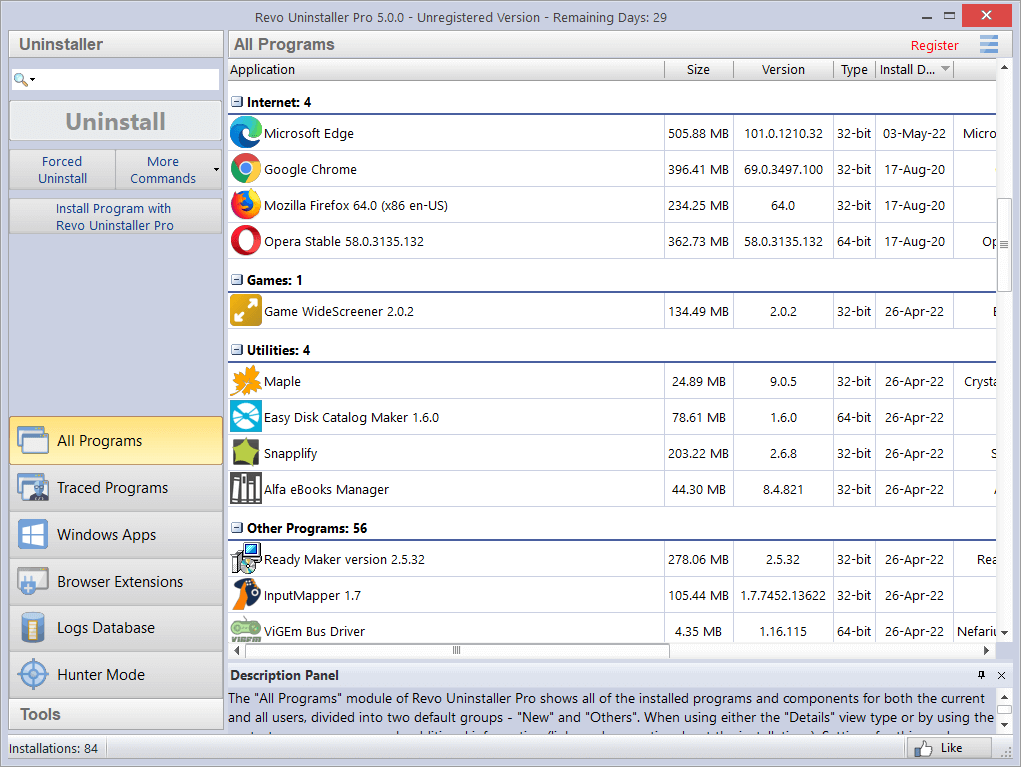
Features & Media
Learn what each module is for (All Programs, Windows Apps, extensions, tools). Pair the Features page with Media so you see the same ideas in motion.
Stories & Blogs
Stories show patterns you might recognize. Blogs turn those patterns into ordered steps, including when to stop and reboot.
FAQ first aid
If you are unsure whether to delete a leftover, read FAQ before you tick boxes. When in doubt, export a backup and work in smaller passes.
Red flags: close the tool and reassess
- · You see hundreds of registry keys with no vendor name and no recent backup.
- · The PC is encrypting, updating, or running a full antivirus scan at the same time.
- · You are on a deadline and cannot afford a mistaken delete on a single shared drive.
- · You are logged in as the wrong user for a per-profile install and the UI warns you about another account’s data.
- · BitLocker, third-party disk encryption, or a pending firmware update is mid-flight.
In those cases, capture screenshots, note the build, and continue when you have time and a recovery path.
Before you change a production PC
- 1 Close the target app and related tray tools.
- 2 Note the exact version you installed (About dialog or file properties).
- 3 Create a restore point or registry export when the guide says so.
After a cleanup
Reboot once even if Windows does not insist. Open the app you kept (browser, Office, games) to confirm nothing shared broke. If a runtime error appears, reinstall the specific redistributable from Microsoft or the game vendor instead of undoing the whole cleanup blindly.
Terms we reuse across the site
- Leftover
- Files, registry keys, or tasks that still reference a program after its main uninstaller ran.
- Elevation
- Running a step as administrator so Windows allows changes under Program Files and protected hives.
- WOW6432Node
- The 32-bit view of uninstall entries on 64-bit Windows. Duplicates here cause “ghost” still-installed messages.
- Forced uninstall
- Removing a broken listing when the normal entry is missing or the MSI half-finished. See Features for scope.
- MSI
- Microsoft Installer packages. Logs and error codes (like 1722) point to script steps that failed mid-run.
- Shell extension
- Code that hooks into File Explorer menus. Suites often leave these after the main uninstall; disable or remove only when the path names the old vendor.
- Bootstrapper
- A small downloader that pulls the real installer. Removing only the bootstrapper folder can leave the full product behind, so always chase the entry Windows shows in Apps list.
- Custom action
- An MSI script step that runs a vendor command. When it fails, you often see error 1722 in the log even though most files copied successfully.
- Per-user vs per-machine
- Some installers register only for the account that ran setup. If another profile still sees the app, you may need to remove it while signed in as that user or use an elevated repair from the vendor.
- Junction / symlink
- A directory that points elsewhere on disk. Deleting “the folder” through a junction can remove unexpected targets; prefer the uninstaller and verify paths in Explorer before bulk deletes.
What this site does not try to cover
- · Malware removal playbooks, ransom decisions, or incident response law. Treat infections with dedicated security guidance.
- · Licensing compliance for your employer: we describe mechanics, not what your contract allows.
- · Linux, macOS, or mobile uninstall flows; every path here assumes Windows desktop unless stated.
Problem → fix playbook
Short checklists you can read before changing a production PC.
Copy any box into your runbook or ticket comment. Order matters: the first line is almost always “use the vendor path,” even when you are frustrated.
Error 1722 / MSI rollback
- Stop the Windows Installer service briefly, retry from an elevated prompt.
- If the product half-exists, run a forced uninstall, reboot, then reinstall or patch.
- Scan for leftovers only after you export a registry backup.
“Already installed” ghost
- Check both 32-bit and 64-bit uninstall lists; some entries hide under WOW6432Node.
- Remove stray product codes with vendor cleanup tools if provided, then rescan.
- Recreate the installer cache only when you know the build version you need.
Blue screen after driver bundle
- Boot to safe mode with networking disabled; uninstall the vendor suite first.
- Use Hunter Mode on the tray utility to catch the paired service.
- Defer deep registry deletes until the device manager shows default drivers working.
Low disk after “uninstall”
- Sort %ProgramData% and %AppData% by vendor name; remove only matched folders.
- Clear delivery optimization cache if large games were aborted mid-download.
- Empty Windows\temp after verifying no installers are running.
Printer / scan suite loops
- Remove the OEM “solution center” before the driver package when both appear.
- Stop the print spooler only if documentation says so; note it pauses all queues.
- Scan for tasks named after the vendor under Task Scheduler Library.
Emulator / hypervisor add-ons
- Uninstall the guest tools package from inside the guest OS first when applicable.
- On the host, remove virtual adapters from Device Manager after the suite exits.
- Defer network bridge cleanup until you confirm no VMs depend on that switch.
Cloud sync client will not fully leave
- Sign out inside the app first so it finishes uploading or freeing locks on your profile folders.
- Uninstall from Settings, reboot, then check startup and Task Scheduler for a re-launcher task.
- Only remove local cache folders after you confirm the cloud copy or policy allows it; some orgs require IT to detach the account.
IDE / dev stack clutter
- Uninstall the main IDE or SDK package from Settings first; note whether you still need the same compiler for other projects.
- Remove optional workloads from the vendor’s own installer UI before deleting shared runtimes other apps might share.
- Scan Android or emulator folders separately; virtual device images often live outside Program Files.
Game platform / launcher residue
- Exit the launcher and any running titles; verify cloud saves finished syncing in the client UI.
- Uninstall from Settings, then check %ProgramFiles%, %ProgramFiles(x86)%, and the launcher’s own library folder for orphaned game stubs.
- Clear shader or download caches only when you recognize the path; some redistributables are shared across multiple games.
VPN or “security suite” network filters
- Disconnect the VPN from its UI, then uninstall the primary package before helper drivers.
- Reboot once; retest ping and DNS. If traffic still tunnels, open Windows tools and review adapters listed as miniport or filter types.
- Pair with Services and drivers when a generic service name hides the vendor string.
Office / Click-to-run channel mismatch
- Use the same channel the org deployed: Microsoft 365 apps vs perpetual MSI vs Store; mixed installs fight over the same shortcuts.
- Run the vendor’s online repair or removal tool before you delete Office folders by hand; shared licensing files span several paths.
- After removal, reboot and confirm Teams, OneDrive, and proofing tools are the builds you still want; Ghost installs covers half-removed suites.
Match symptoms to longer guides
Use the home playbook for a fast triage, then open the blog article for the full narrative.
- Installer says “already installed”
- Ghost installs guide
- Tray icon will not die
- Hunter mode article · Features
- Disk still full after uninstall
- Disk space article
- Need a visual walkthrough
- Media page · Stories
- WSL or optional features will not shrink
- Optional features guide
- Uninstall grayed out over RDP
- Remote sessions article
- Shared PC, wrong person’s app
- Shared and family PCs · Multi-user
- Scared leftovers hold passwords
- FAQ on tokens and logs · Backup rhythm
- Telemetry folders after “privacy off”
- Telemetry article
- Subscription still billing after uninstall
- Cancel at the vendor portal first; local removal does not stop charges. Then see Store loops if the tile returns.
- Audio interface / ASIO stack conflicts
- Services and drivers · reboot after removing the control panel, then retest latency before deleting kernel-class devices.
- “Repair” loop every boot
- MSI article · capture the log path from the error, kill the scheduled repair task if your org allows it, then forced uninstall as a last resort.
- Wrong display language after removing a suite
- Check optional language packs in Settings before you delete shared MUI folders. Ghost installs helps when half of Office lingers.
- Antivirus quarantined the uninstaller
- Restore the file from quarantine with hash checks, retry elevated, or download again from the vendor. Do not permanently delete the only copy mid-uninstall. FAQ · Stories
- Sandbox / container left hooks on the host
- Remove the guest integration package first, then the host agent. Reboot before clearing virtual disks so handles release. Pair with Services and drivers.
- Dual-boot second OS still shows old entries
- Each Windows install has its own BCD and program list. Boot the volume you are cleaning; do not assume deleting files from the other partition updates this one’s registry.
After you install
The home carousel shows real Pro UI; your first session should feel familiar if you skim those slides first. Open Features in a second tab, run one harmless uninstall on software you planned to remove anyway, and only then tackle the app that broke your week.
- · Turn off aggressive “clean everything” modes until you have a restore point or registry export.
- · Expect UAC prompts when touching all-user installs; approve only the executable you launched, not a random temp path.
- · Watch Media once if text guides feel abstract on your monitor size.
- · Pin Home or this site’s playbook section if you support the same relatives every month; the checklists stay stable while Windows UI strings shift slightly.
Keep proof of what you changed
Screenshots of uninstall dialogs, exported .reg files, and a one-line ticket note turn “mysterious” breakages into solvable history. You do not need a full forensic suite: a dated folder on a second drive or cloud drive is enough for most households.
Pair that habit with Registry backup rhythm before you trust any deep scan result.
- · Name files YYYY-MM-DD-product.png so sort order matches real time.
- · Store exports outside the system drive when you can; USB sticks work for one-off family support visits.
- · If you paste paths into chat, redact usernames when posting publicly; keep an unredacted copy for yourself.
Hardware and environment tips
Uninstall work stresses storage and sometimes thermals when a scan walks the whole disk. None of this replaces cooling or disk health checks, but it avoids silly failures.
- External USB drives: let pending writes finish; eject politely before you remove a program that mirrored libraries there.
- Docking stations: undock only after the uninstaller exits; some audio and NIC filters unregister on disconnect.
- System partition almost full: Windows needs headroom for temp files during uninstall and rollback. Free a few gigabytes on C: before large suites; see Disk space.
- ARM and hybrid devices follow the same order as x64; if a vendor ships a separate ARM build, remove the wrong architecture first so the right installer can register cleanly.
Reading this site comfortably
Long pages are easier with browser zoom, reader mode, or system text scaling. The Media page carries the same flows if reading dense text is tiring or you share a screen with someone else.
- Keyboard: use Tab through the jump list and headings; carousel focus matches the note under the hero screenshots.
- Low vision: prefer high-contrast themes in Windows and your browser; screenshot-heavy sections still include alt text on key images.
Paste-friendly hints for IT tickets
If you open a helpdesk request, include facts that shorten the back-and-forth. Copy the lines that apply; redact serials if your policy says so.
- OS Edition, build number from winver, and whether it is domain joined.
- App Exact name in Apps list, reported version, install scope (per user vs all users).
- Error Verbatim text or MSI log path, plus whether reboot was offered and skipped.
- Steps What you already tried: Settings uninstall, vendor repair, safe mode, elevation level.
Download the Windows installer
When you are ready, get the Pro setup file. Scan it with your antivirus and follow SmartScreen if Windows asks. This site is an independent guide.
Builds can change often. Compare the file name and digital signature with what your IT team expects before you deploy silently across many PCs.
Re-running setup later usually repairs a broken shortcut or missing context menu entry; it is gentler than deleting half the tree by hand. After any upgrade, skim Features again in case menus moved between major versions.
- ✓ Close the app before scanning for leftovers.
- ✓ Plug in laptop power for long scans.
- ✓ Have a recovery option before heavy registry edits.
- ✓ Read FAQ if SmartScreen or your firewall blocks the download.
- ✓ On metered or guest Wi‑Fi, download once on a stable link, then verify the file hash if your security team requires it.
- ✓ Prefer a wired connection when you will run setup and an immediate large leftover scan on the same day.
- ✓ If you need an offline copy for air-gapped labs, transfer the same file your browser downloaded; do not rename it unless your runbook says so.

Windows · Executable
Revo Uninstaller Pro setup
Download Pro installerOnly keep the download if you trust the source shown in your browser.
Need the free edition instead? Use the same publisher channel you already trust for installers; the Windows uninstall story on this site does not change with the license tier.
More context before you change the PC
These notes sit outside the numbered sections above: they are background you can skim once, then keep in mind every time you open an uninstall wizard or a leftover list.
Why the default path still matters
Settings → Apps and the vendor’s own uninstall entry exist because Windows and the installer database expect that sequence. Skipping straight to file deletes often leaves services running, tasks scheduled, and shell extensions registered even when folders look empty.
When the normal path fails, capture the exact error text or MSI log line first. That single habit turns “random broken PC” into a pattern you can match to MSI rollback or ghost installs without guessing.
When to pause and ask someone else
- · The device is enrolled in MDM, school policy, or a domain that forbids local admin fixes.
- · Disk encryption, BitLocker recovery, or a pending firmware update is active.
- · Another person’s profile clearly owns the data path listed in the scan.
In those cases, send screenshots and paths to IT or the device owner first. The Remote sessions and Shared PC articles describe how elevation and accounts change what you are allowed to do.
Signals you are looking at the right leftover line
Good rows usually name the vendor, product family, or version folder you already saw in Programs and Features. They often sit under predictable roots such as Program Files, a publisher folder under ProgramData, or a service key that matches the tray app you closed.
- OK Paths that repeat the product string you just uninstalled, after a reboot.
- OK Shortcuts in a user profile that still point at a removed .exe under that user’s AppData.
- Wait Generic Temp paths or Visual C++ redistributable keys shared by many apps.
- Wait Anything labeled Microsoft without tying to the product you removed—treat as out of scope unless documentation names it.
For the full workflow, open Leftover scan workflow and export backups as described in Registry backup rhythm.
Extra topics worth bookmarking
Short blurbs for guides that pair well with the home playbook. None replace the main pages; they add depth when the symptom matches.